


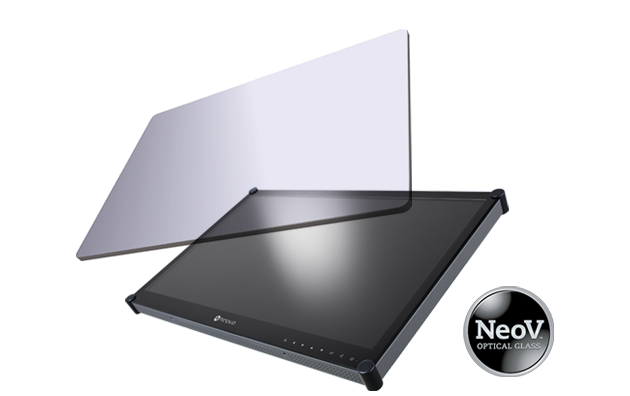
 NeoV™ Optical Glass Screen
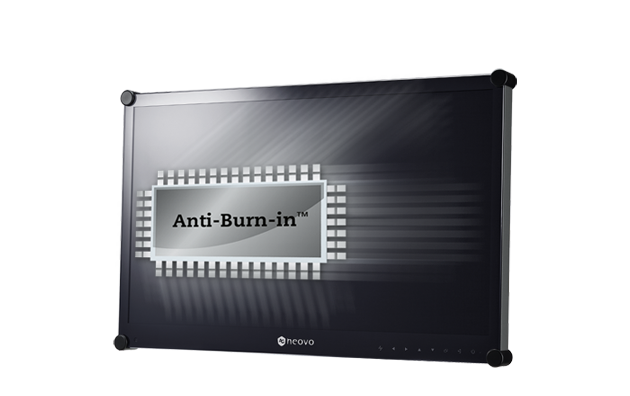 Anti-Burn-in™ Technology
Tutorial Video


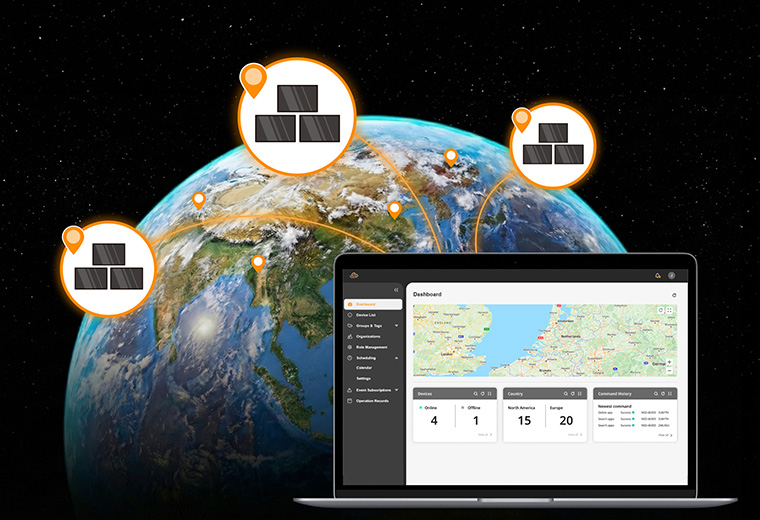
Neovo Manager helps teams manage supported AG Neovo Android displays remotely from a browser-based platform. Built for display device management after deployment, it lets IT, AV, and operations teams monitor status, control settings, schedule actions, organize devices, and manage Android apps without installing additional software.
Manage multiple compatible displays from one web-based platform and reduce repetitive setup, monitoring, and maintenance work across rooms, sites, or customer projects.
View device status and live screen content remotely. Troubleshoot supported displays with real-time visibility, remote adjustments, and faster response across locations.
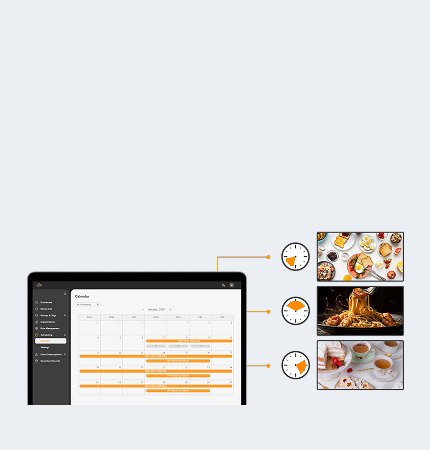
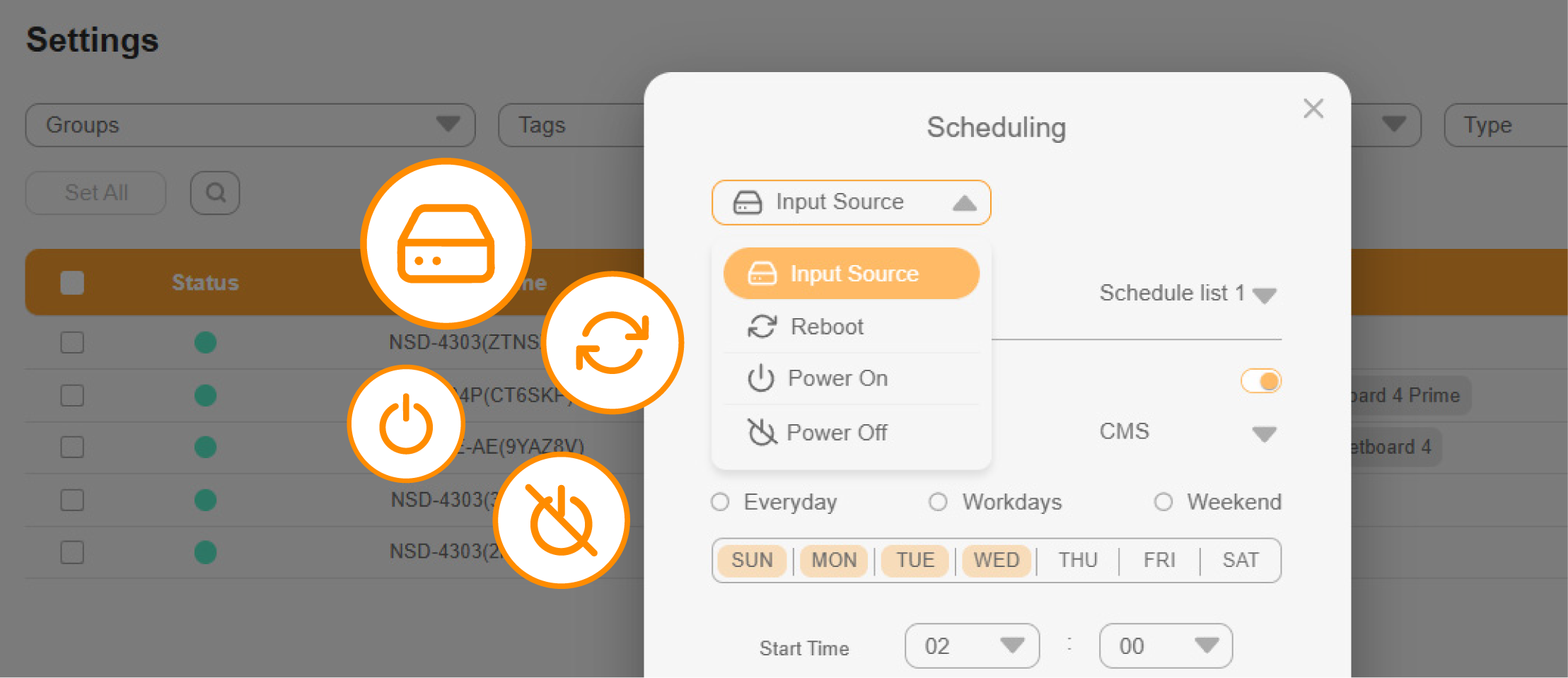
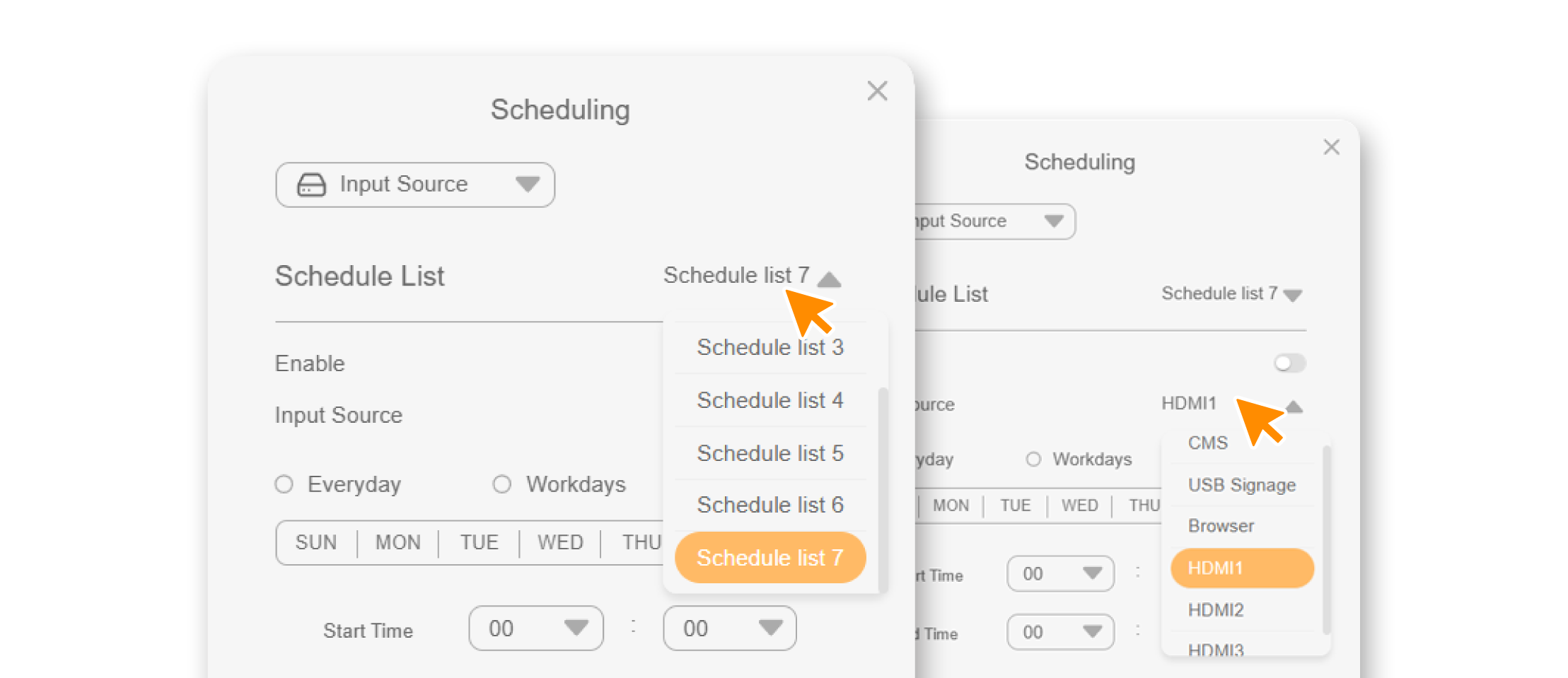
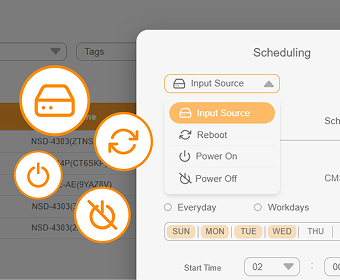
Monitor key device metrics and automate routine actions, including power, reboot, and input source scheduling, to keep compatible displays operating consistently after deployment.
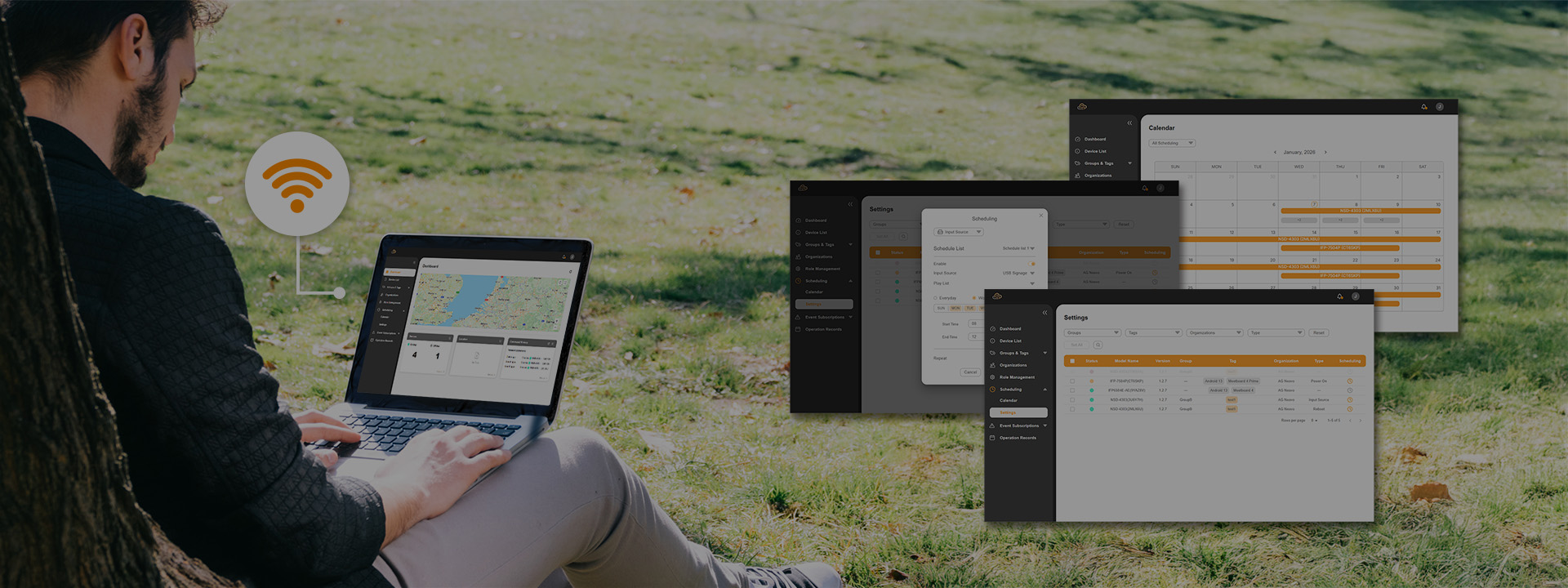
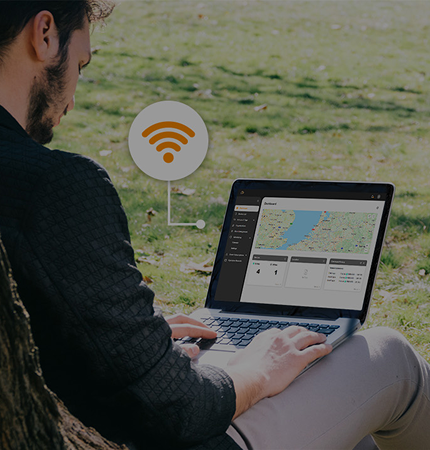
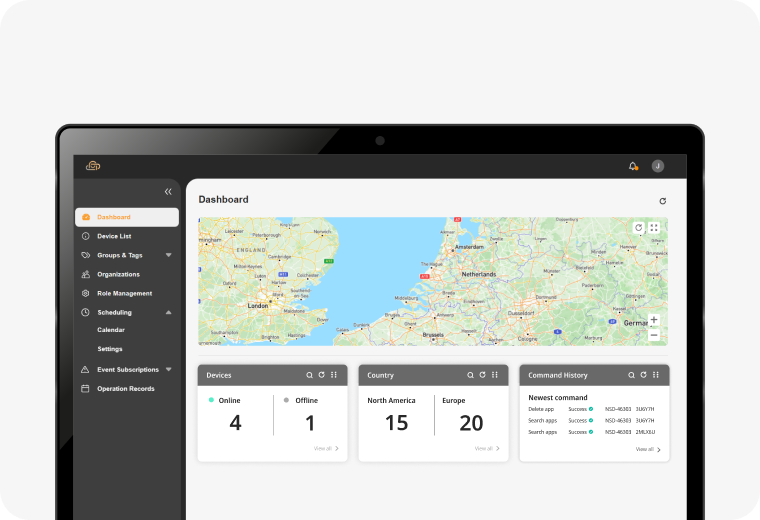
View display status, locations, groups, and command history in one dashboard, so teams can see where to focus and act faster.
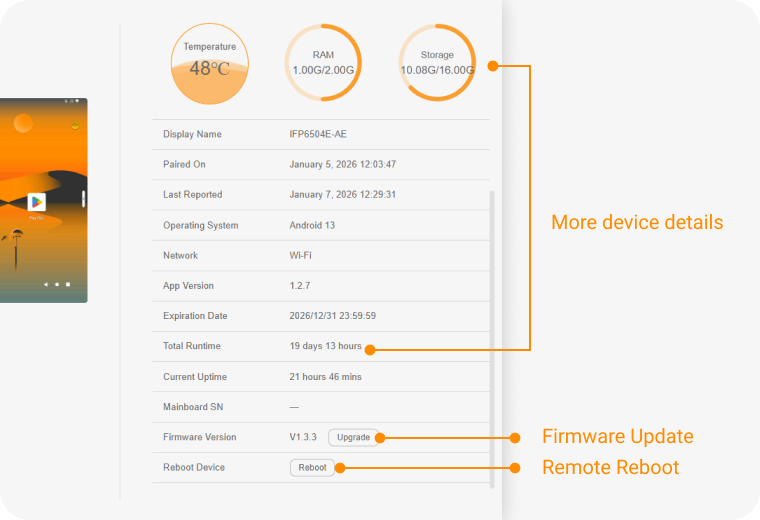
Monitor temperature, RAM, storage, uptime, and firmware status to identify potential issues before they affect display operations.
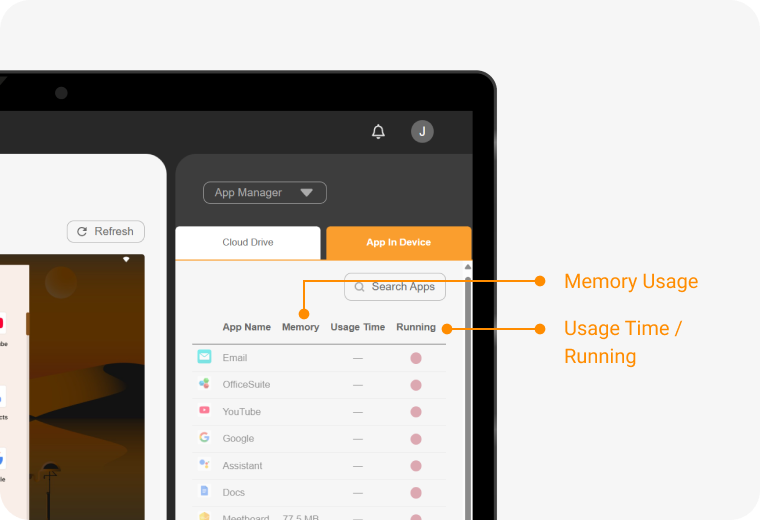
Track Android app status, memory usage, and running activity across compatible displays to keep each device operating as expected.
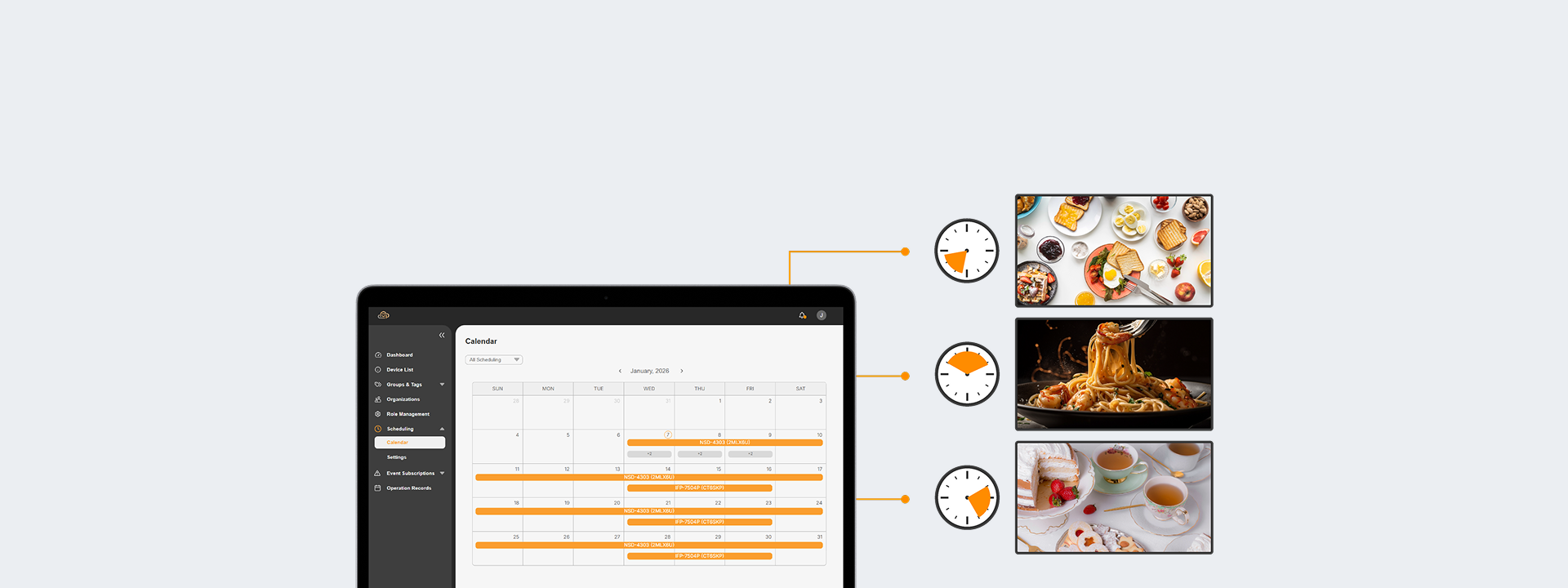
Manage supported AG Neovo Android displays remotely with unified browser-based control for day-to-day display operations after deployment.
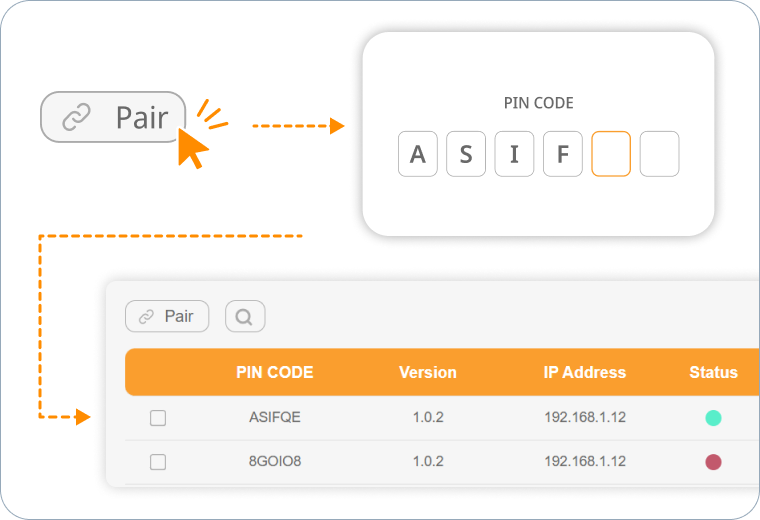
Pair displays with an on-screen PIN and view real-time status, IP address, version, and essential device information from the Device List.
*The free trial version supports up to 20 paired displays.
Adjust display settings, switch input sources, and operate on-screen menus remotely from one browser-based platform.
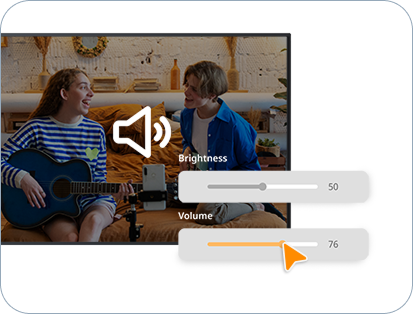
Fine-tune brightness, volume, and basic display settings remotely.
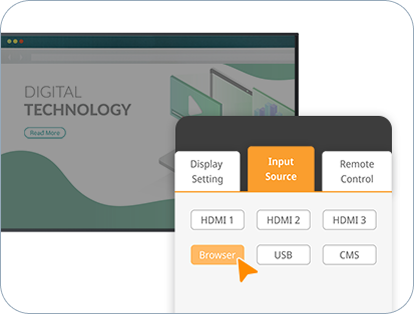
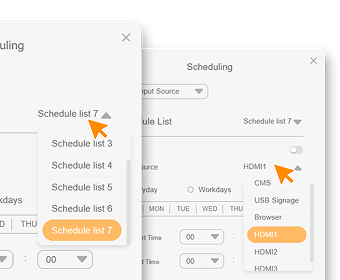
Switch between available input sources, such as HDMI, Browser, USB, or CMS, depending on the supported display configuration.
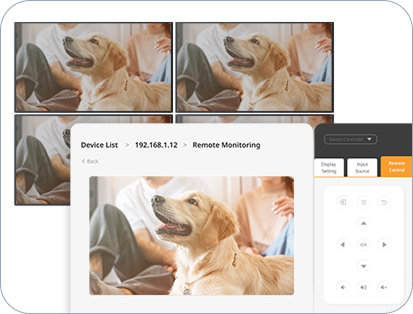
Control on-screen menus with the built-in virtual remote from a browser-based dashboard.
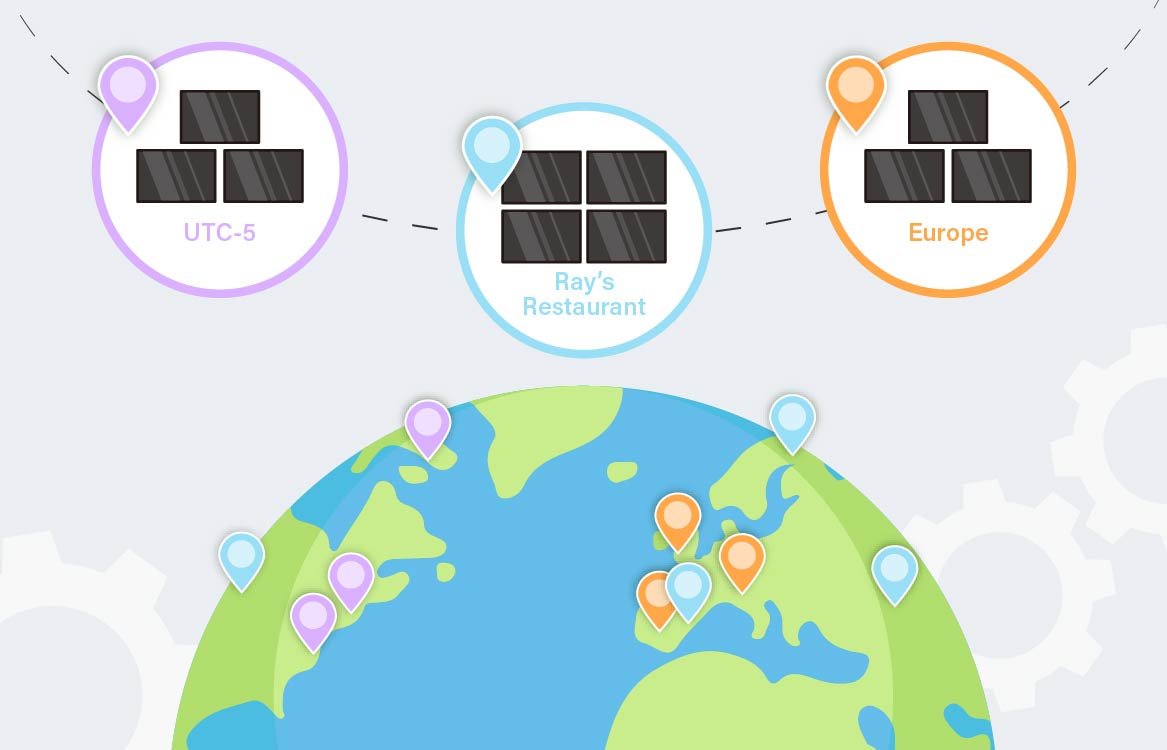
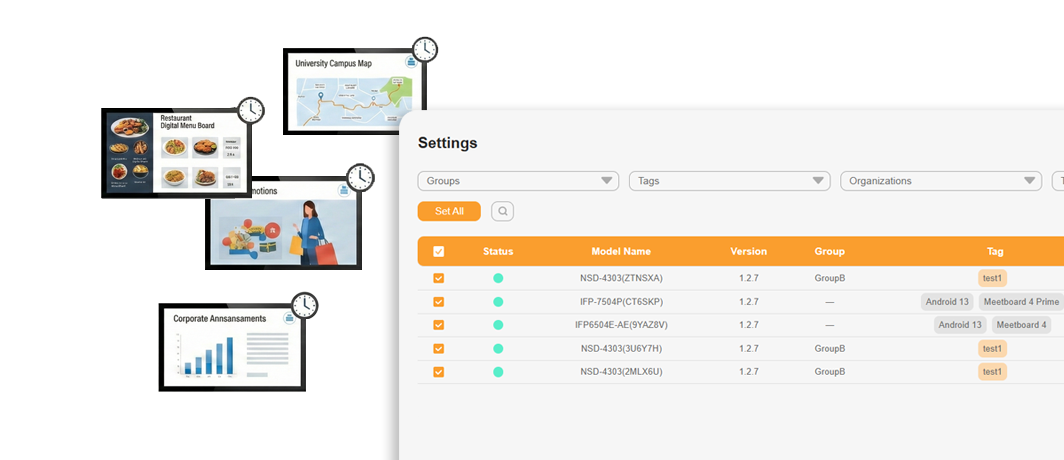
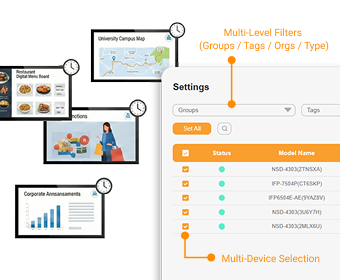
Use groups and tags to organize displays by site, room, role, customer project, or deployment stage for easier display management at scale.
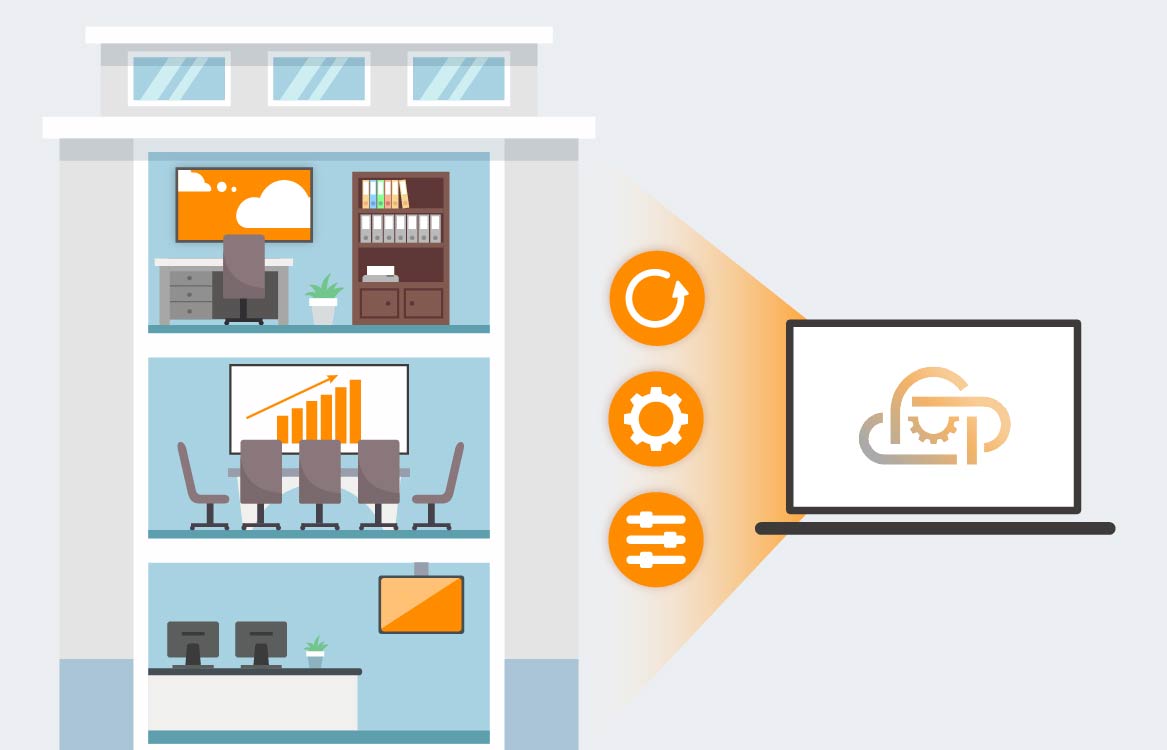
Apply settings and commands to selected groups in one action for faster display management across larger deployments.
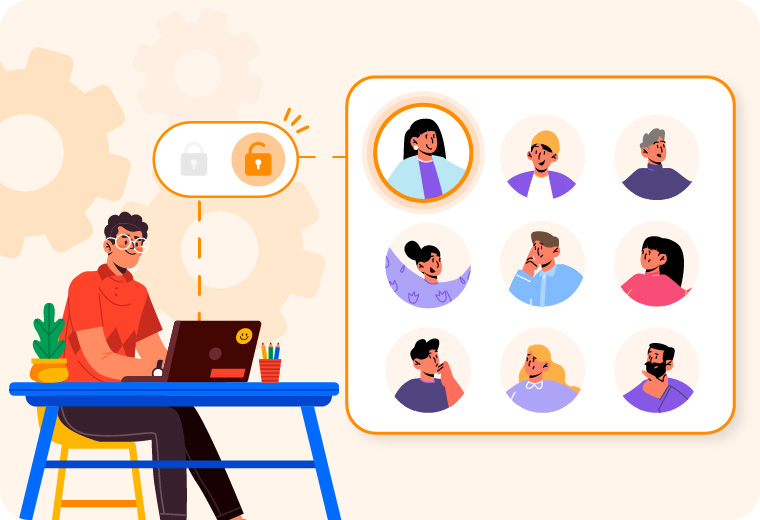
Assign the right access to each team member with configurable permissions, supporting secure and organized display management for administrators, operators, and support users.
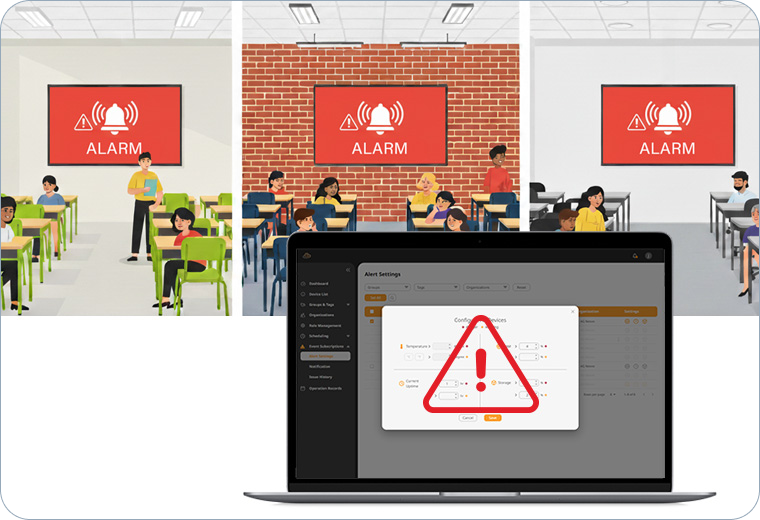
Set thresholds for device metrics and receive alerts when attention is needed, helping teams respond before display issues affect operations.
Manage Android apps across compatible AG Neovo Android displays as operational needs change.
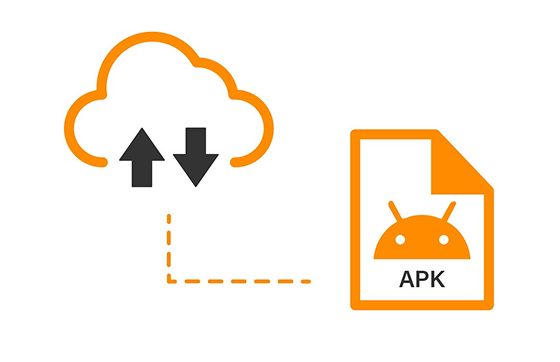
Upload an APK once and deploy it across selected compatible displays without configuring each device individually.
Update or replace apps across selected displays without handling devices one by one, helping teams maintain a consistent app environment across locations.
Select an app, choose the target displays, and complete deployment remotely.

Neovo Manager is a browser-based remote display management platform for supported AG Neovo Android Displays. It helps teams monitor device status, control settings, schedule actions, manage apps, and organize multiple displays from one central dashboard.
Neovo Manager supports selected AG Neovo Android-based displays, including the DS-Series, Meetboard 4, and Meetboard 4 Prime. Please refer to the latest product information for model compatibility.
No. Neovo Manager is designed for display device management, not content creation, playlist design, or media publishing. It can work alongside digital signage CMS solutions by helping teams manage display status, schedules, apps, and remote controls.
Please refer to the OTA upgrade guides for supported displays, including DS-Series, Meetboard 4, and Meetboard 4 Prime. After the system is updated, open the Neovo Manager App on the display to start pairing.
First, make sure the Neovo Manager App is installed on the display. Open the app, confirm the six-digit PIN code, then sign in to the Neovo Manager website. Click Pair and enter the PIN code and promo code to complete pairing.
You can unpair a display from either the display or the web platform. On the display, open the Neovo Manager App and select Unpair. On the web platform, select the display in the Device List, click Delete, and confirm the action.
Sign in to the Neovo Manager website and make sure at least one display is paired. Click Monitor to view display status. To control the display remotely, click Remote Monitoring.
In the Device List, select one or more displays. Go to Device Control > Display Settings, then enable IR Lock to disable the remote control or Key Lock to disable the physical buttons.
In the Device List, select a display. Go to Device Control > Remote Control and click Screenshot to view the current screen. For more detailed status, click the Monitor icon.
In the Device List, click Monitor on the selected display. The right-hand panel will show detailed device information, including display status and system details.
No. Full functionality is currently offered for up to 20 devices.
For larger-scale trials, please contact your local sales representative.
Please refer to Terms of use.


